Sign Up FAQs
Signing Up
Do not delete
What do I need to create an account?
To create an account, you need the phone number and/or verified email associated with your YMCA membership.
My email/phone number is taken.
When your same email is linked to another account, you will receive an error. Be sure that everyone on your membership unit has a unique email address and phone number. Contact your home branch or log into your account to change this.
I am getting an invalid message when I type in my phone number/email.
Please be sure you have typed your phone number/email address properly. Contact your home branch if the problem persists to verify the membership contact information on file.
I forgot my password.
Please select “Forgot your password?” You will be prompted to select a method to receive a one-time code. Once you have the code, please enter the code and a new password to reset it.
Home Branch
Do not delete
I’m moving and changing home branches. Will I lose all my fitness activity?
No, you won’t lose your fitness activity. Keep tracking those workouts! Your branch settings will update automatically.
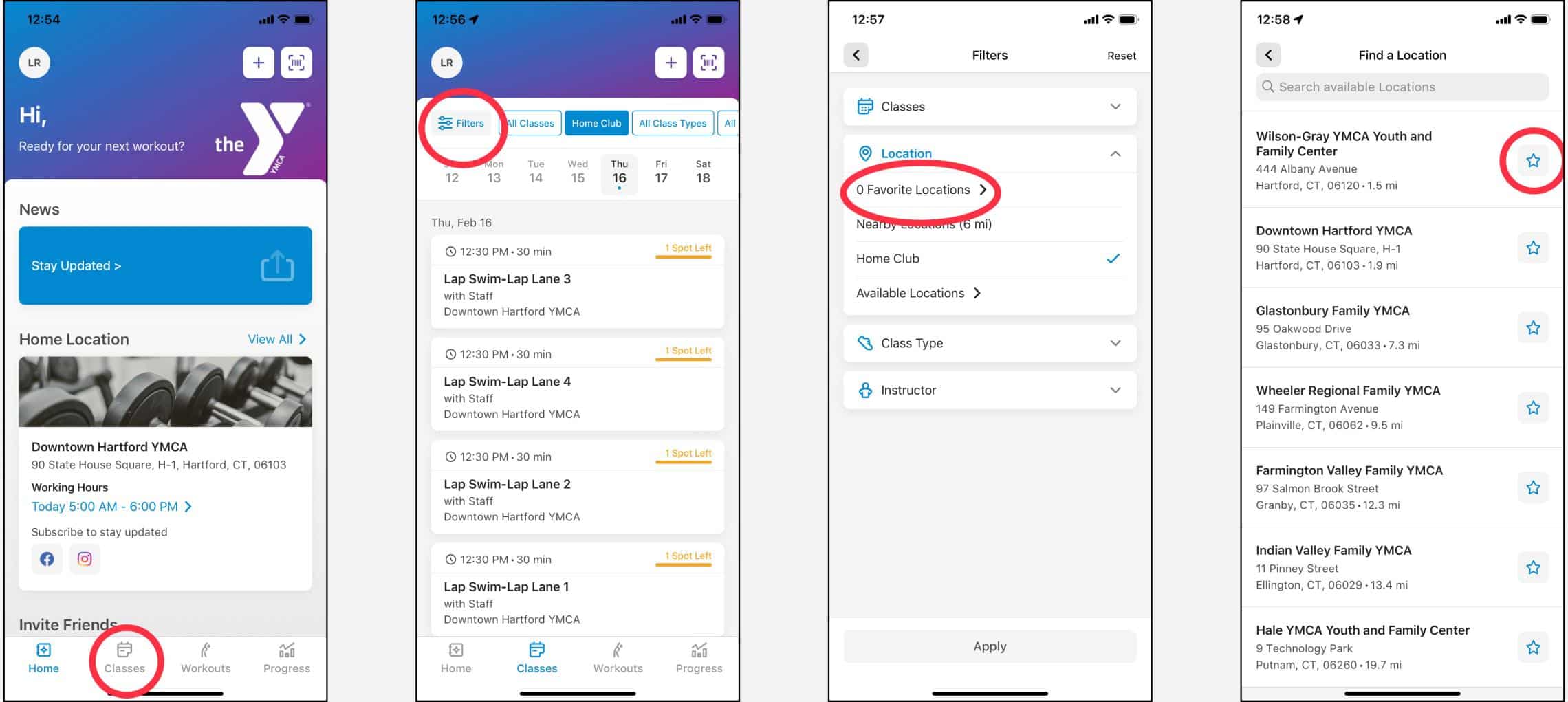
How to set your preferred Branch(es)
- Select the classes tab from the Home page.
- Click “Filters”
- Click “Favorite locations”
- Click the star icon to select your favorite branch(es).
Workouts FAQs
Do not delete
How do I log a Workout?
Select the “Workouts” tab and click the “log workout” button. Input corresponding information.
How do I edit/delete a workout?
You can edit your workouts in the “Workouts” tab. Select your workout from the Latest Activity section and click on the exercise you would like to edit. Click “Save” once done. To delete a workout, swipe from right to left on the workout. You will then see a red "delete" button appear. Tap "delete”.
What if I don’t want my workouts highlighted on the Activity Feed?
Select your profile in the top left corner to bring you to your profile. Click “Settings”, “Privacy” and toggle the slider on the “Public” profile type. If the slider is blue, your profile is public.
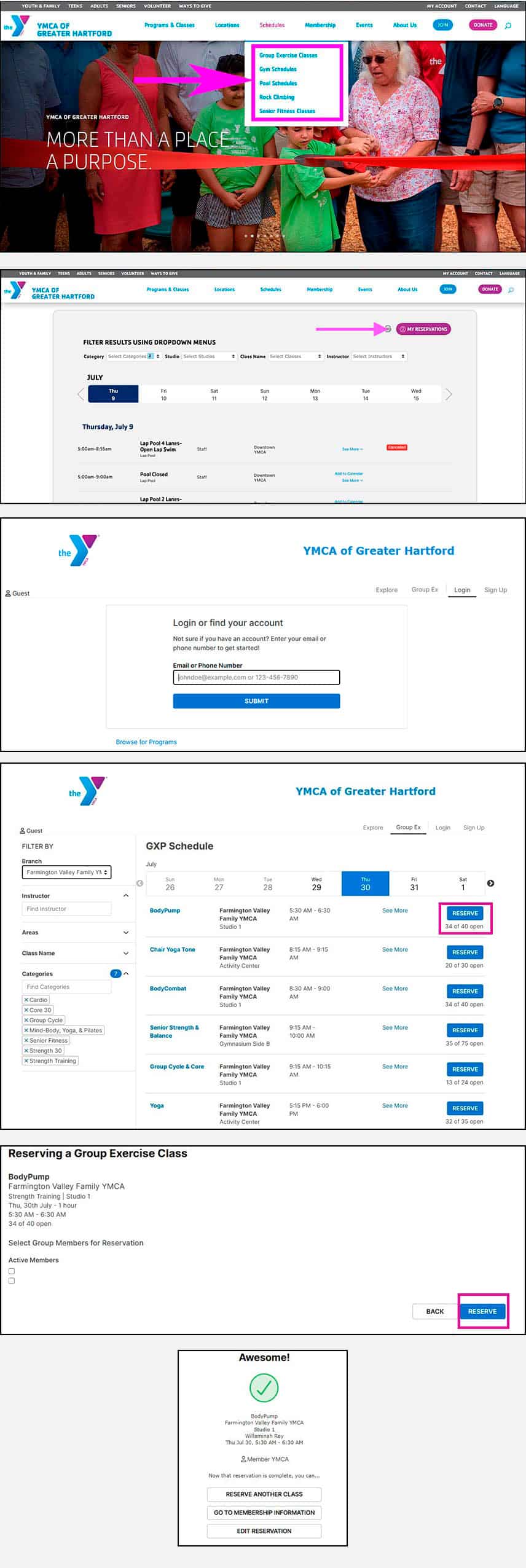
Booking Classes & Making Reservations on ghymca.org
- Open the menu and select which schedule you are looking for.
- Click the “My reservations” button.
- Enter your Daxko login information.
- Click the reserve button for the class you want.
- Select which member(s) for the reservation.
Confirmation of reservation.
Need to cancel a reservation?
Select your reservation and click "Cancel Booking" at the bottom of the screen.
What happens if I miss a reservation?
We understand, things come up and plans change. When making a reservation, if you are unable to attend, it is important to cancel the reservation ahead of time whenever possible. Group Exercise classes require one hour notice and all others require as much notice as possible. This practice will allow another member of our community to fill the spot and participate.
After three missed reservations, access in the app will be suspended 14 days. If you did attend one of the reservations and you were not checked in, please let us know through emailing us directly or asking the Welcome Center and we will work with you to resolve your use of the reservation system once again.
Connected Apps/Devices FAQ
Do not delete
What apps/devices can I connect with?
For a full list of apps to connect with, please visit the “Connected Apps” tile in your profile.
Goals and Challenges FAQ
Do not delete
How do I Create a Goal?
You can create a personal goal by selecting the Progress tab and scroll to the Goal Center section. Here, it will allow you to pick your goal type, target and duration.
Can I have multiple goals at once?
No, you can set only one goal at a time.
Can I create a goal for me and my friend?
No, this is your personal workout tracking account. If you attend the same gym with your friend, you can, both, join a challenge created by the branch.
How long does a challenge last?
Please visit the challenge page on the App to view the challenge details or you can visit the Welcome Center at your home branch.
What if I am on vacation during the challenge but still want to participate?
You can participate on the go! Link to your 3rd party apps/devices (Fitbit, Runkeeper, MyFitnessPal, etc.) under the “Connected Apps” tab.
Can I participate in more than one challenge?
Absolutely, join as many as you’d like.
Can I My workouts are missing from the challenge. in more than one challenge?
Confirm your 3rd party devices are synced. Please visit the “Challenge” tab on the App for full challenge details as rules can differ per challenge. Please note, if you are using a 3rd party app/device to record your workouts there may be a slight delay from when the app/devices syncs to when the workout appears on the leaderboard.
I signed up for the challenge but my workouts aren’t counting towards it?
Please check the start date of the challenge in the App, it may not have started yet. Your workouts will begin recording when the Challenge officially starts. Please note, if you are using a 3rd party app/device to record your workouts there may be a slight delay from when the app/devices syncs to when the workout appears on the leaderboard.
How do I leave a challenge?
Please sign into the App and go to the “Challenge” tab and click on the challenge you have joined. From there, you can click on "Leave" in the upper right corner. This will remove you from the branch challenge.
CONTACT US
Contact us through the app by clicking the "Give Feedback" button under your profile in the app or by emailing us at friends@ghymca.org.